
Step 1
Build with sections
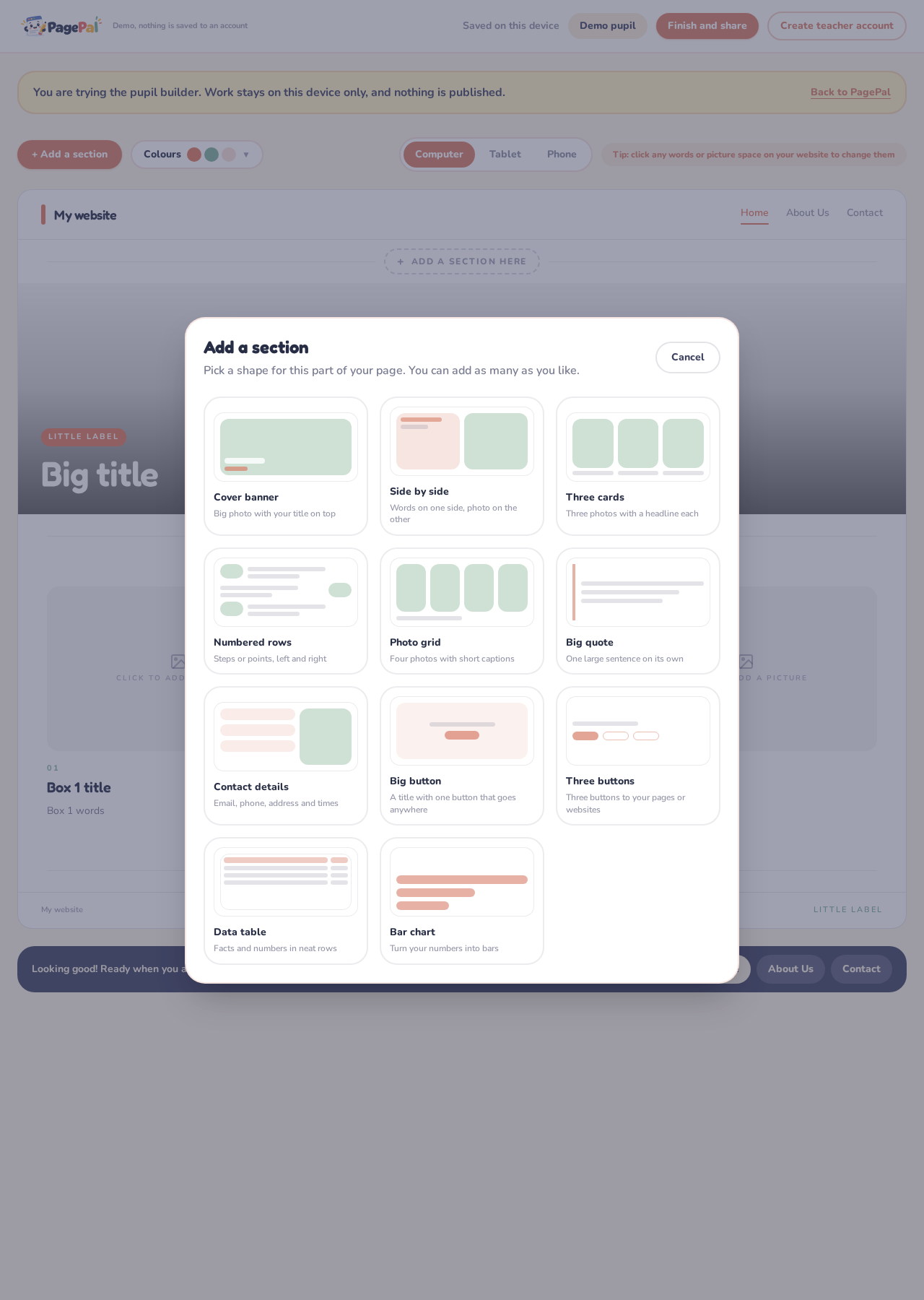
Pupils add ready-made sections to create their own Home, About Us and Contact pages.
PagePal removes complicated tools and gives pupils one decision at a time, while a live preview shows their progress.
See the pupil experience
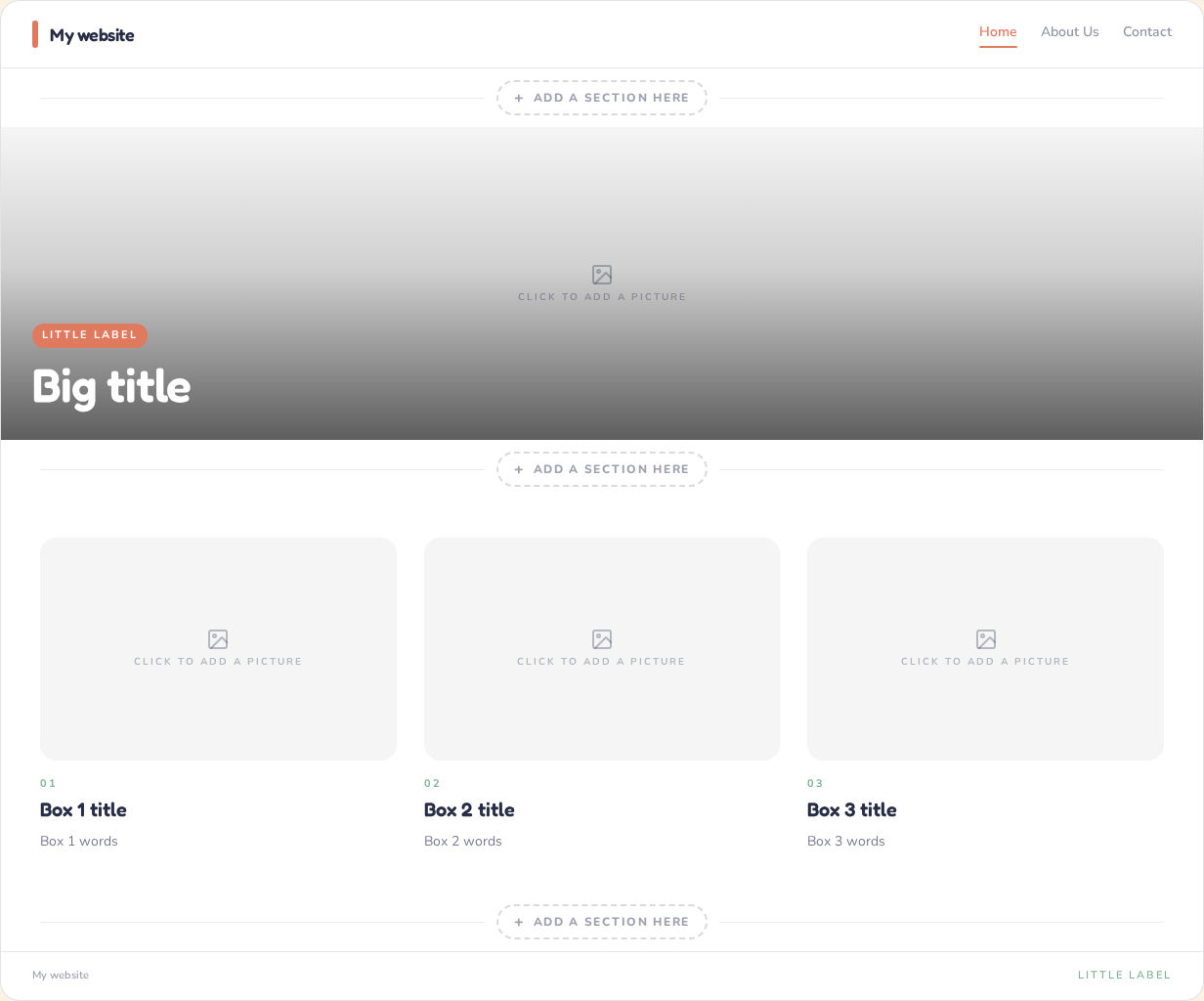
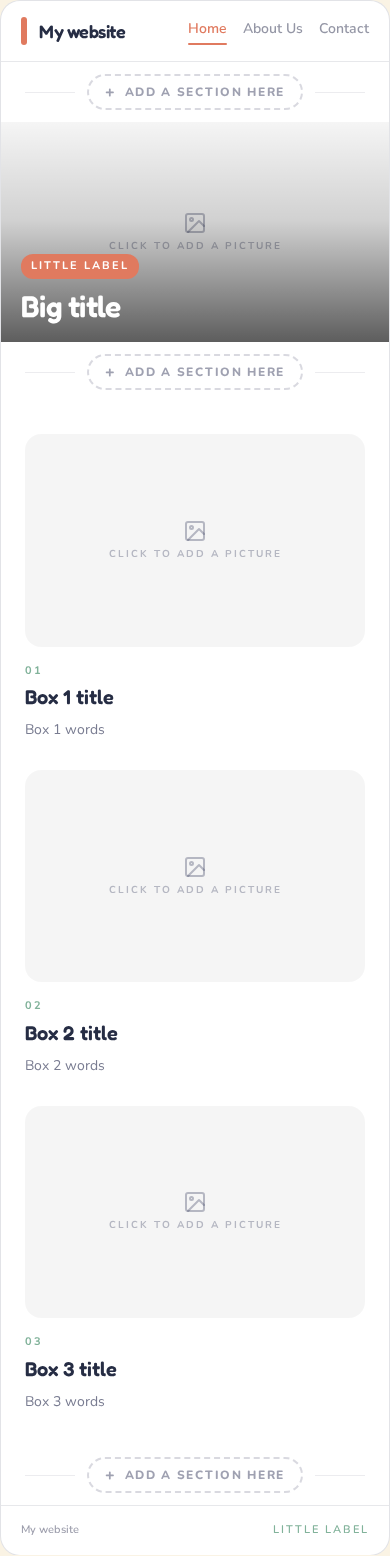
Pupils work directly on the page, choose from structured sections and check how their site looks on different screens.
Step 1
Pupils add ready-made sections to create their own Home, About Us and Contact pages.
Step 2
Clear picture spaces show exactly where each image will appear. Pupils click a space to upload.
Step 3
A set of ready-made colour themes keeps every page easy to read.
Step 4
Pupils click any heading, sentence or label and type directly into their website.
Step 5
Pupils send their finished site to the teacher, who previews it before approving it to go live.
Work saves automatically, pupils can return next lesson, and every finished page can be printed without the building tools.
Create teacher account